How to Add Karl Konnekt Widgets to Your Website
A booking link is enough for your first Hop. When you are ready to show upcoming Hops or a Course Calendar on your website, use the current Karl Konnekt widget loader and keep a direct link as fallback.
Simple Widget Setup Instructions for Kangaroo Kaptns
You do not need a website widget to start using Karl. For your first class, create one Hop in Kaptn Karl and share the booking link or Kaptn QR code wherever your people already are: WhatsApp, Instagram, newsletter or a normal website button.
Add a Karl Konnekt widget when you want upcoming Hops or a Course Calendar to appear directly on your website. The current widget system uses a hosted loader script plus a .kk-widget placeholder.
Step 1: 🖱️ Copy Your Widget Code
In your Kaptn Karl app (under Website Widgets), find your widget and copy the snippet shown there. The widget key is not a Joey password or payment secret, but it does authorize public widget rendering for your Kaptn profile, so only share it where you intend the widget to appear.
If you are still setting up the first class flow itself, start with one Hop and one direct booking link or the first Hop guide. Come back here when the Hop or schedule is ready to publish on your site.
Your snippet looks like this:
<!-- Karl Konnekt widgets -->
<script src="https://karlkonnekt.app/assets/widget-loader.js" defer></script>

<!-- Upcoming Hops -->
<div class="kk-widget"
     data-widget="upcoming-hops"
     data-kaptn="YOUR_KAPTN_ID"
     data-key="YOUR_WIDGET_KEY"></div>
Don't worry, your personal ID, widget key and widget settings are automatically included in the snippet you copy from Kaptn Karl. Add the loader script once per page; you can place more than one widget placeholder below it if needed.
Step 2: ✏️ Paste It Into Your Website
For WordPress users (or similar site builders):
- Go to your WordPress dashboard.
- Edit the page or post where you want to show your upcoming activities.
- Add a new "Custom HTML" block.
- Paste the entire snippet you copied in Step 1.
For Squarespace, Wix, Webflow, or other builders, use an embed/custom-code block. If the builder strips or delays script tags, keep a normal booking link on the page as a fallback, or ask your site admin to add the loader once in the site header/footer and leave the .kk-widget placeholder in the page body.
Keep that fallback link visible even when the widget works. It gives visitors a reliable path to the same Hop if a browser extension, consent tool or site builder blocks embedded scripts.
Step 3: ✅ Save and Celebrate
Save your changes and visit your website. 🎉
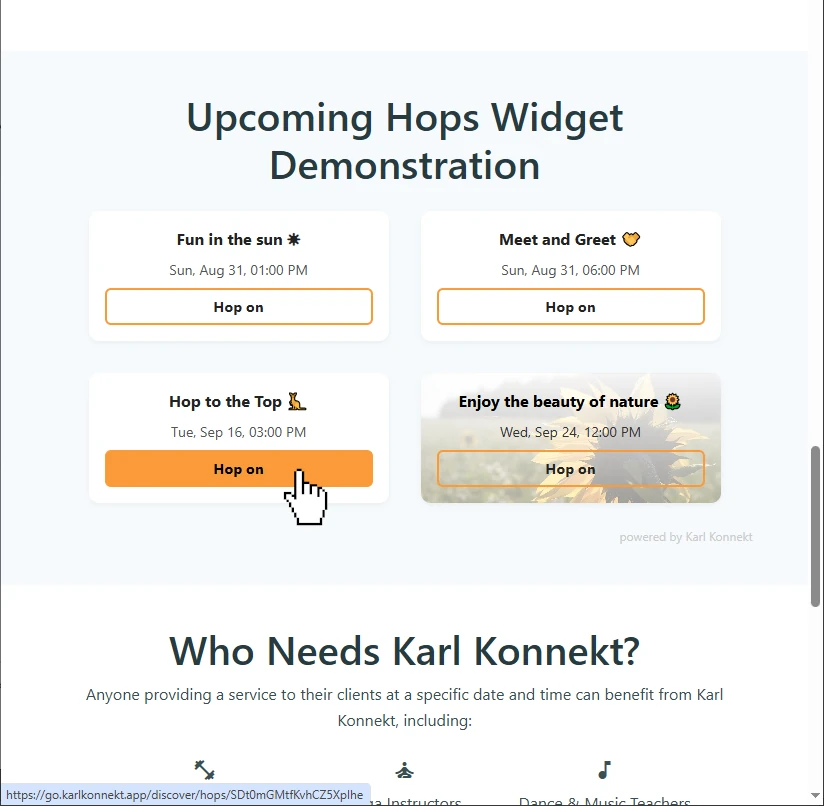
Sample Widget integration jaydaptif.solutions website
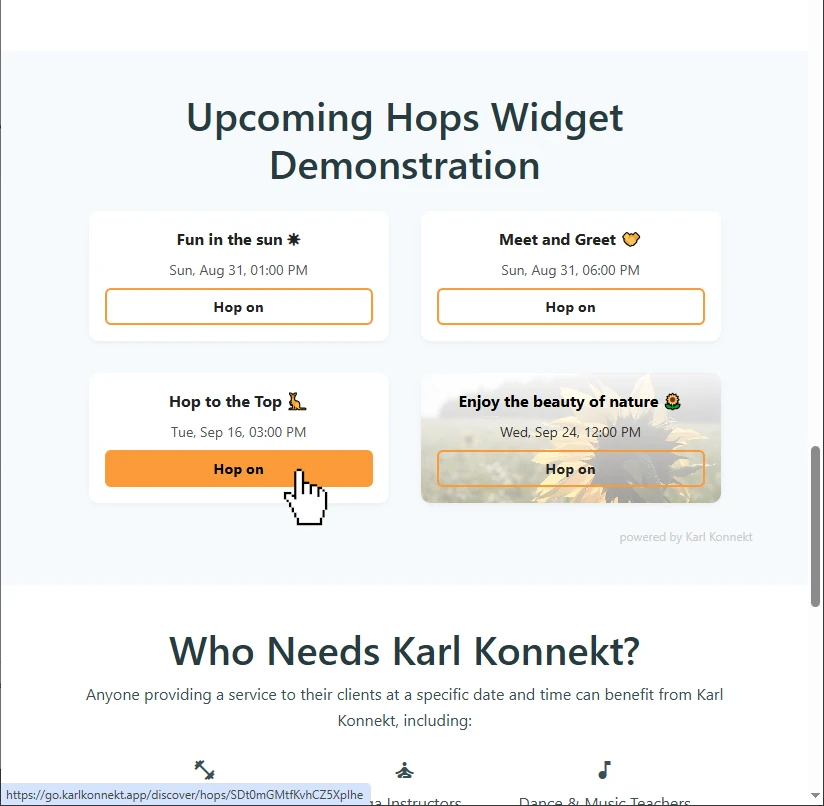
Your Upcoming Hops are now displayed, and your clients can see your activities and follow the Hop links. When a Hop is full, the widget can show the waitlist CTA (Hop on (waitlist)). Canceled Hops are marked as canceled and do not link to booking.
Karl Konnekt also supports a Course Calendar widget for published course occurrences. It uses the same loader pattern with data-widget="season-calendar":
<script src="https://karlkonnekt.app/assets/widget-loader.js" defer></script>

<div class="kk-widget"
     data-widget="season-calendar"
     data-kaptn="YOUR_KAPTN_ID"
     data-key="YOUR_WIDGET_KEY"></div>
🔗 Why the backlink?
The link at the bottom (powered by Karl Konnekt) helps visitors understand who powers the widget and can send more Joeys and Kaptns into the Karl Konnekt community. Widget routes render public-facing Kaptn, Hop, course, date, link, image, and aggregate-capacity data; they do not render participant IDs or Joey identities.
If you have questions or need help, Karl is here for you! 🦘
website widgetswebsite bookingembedsetup guide